AION 2 Closet Guide: Claim, Equip, Dye and Restore Outfits
Updated 4 min read
Short answer
For an outfit delivered to Shop Storage, claim it there, then open Esc → Closet → Armor. Use Customize on an eligible piece to dye it. To undo a change, first decide whether you want to discard a preview, remove a saved dye, or change the skin you wear.
Claim a shop outfit
- 1
Find the delivery
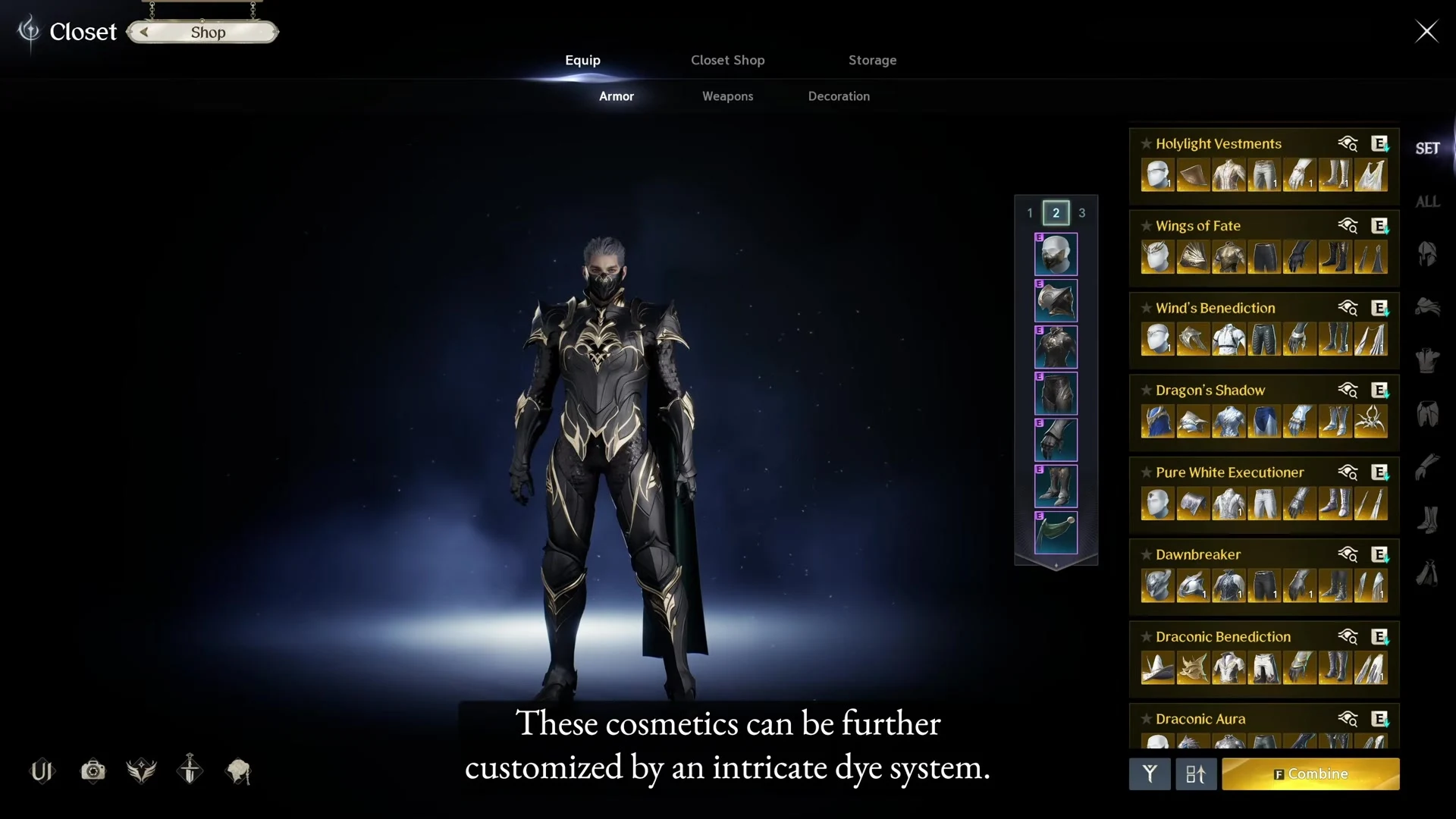
In the in-game Shop, open Storage and select the set named on your purchase. Confirm the receiving character or server if the client asks. The November 11 Global notes confirm that claiming Casual Hoodie there unlocks its chest, leg and head pieces in Closet → Armor.
- 2
Check the item’s delivery instructions
If Storage is empty, check the product or reward notice and the account used to buy it. Delivery varies by item. For example, the same patch sends the Creepy Night Cat Wings to Cube after claiming them from Shop Storage.
Equip the appearance
Open Esc → Closet. In the Equip view choose Armor, Weapons or Decoration as appropriate. Select an unlocked set or the piece for the slot you want, use its equip control, then check the active look on your character. The skin changes the look of your equipped gear without replacing it.
Dye one piece first
- 1
Open the palette
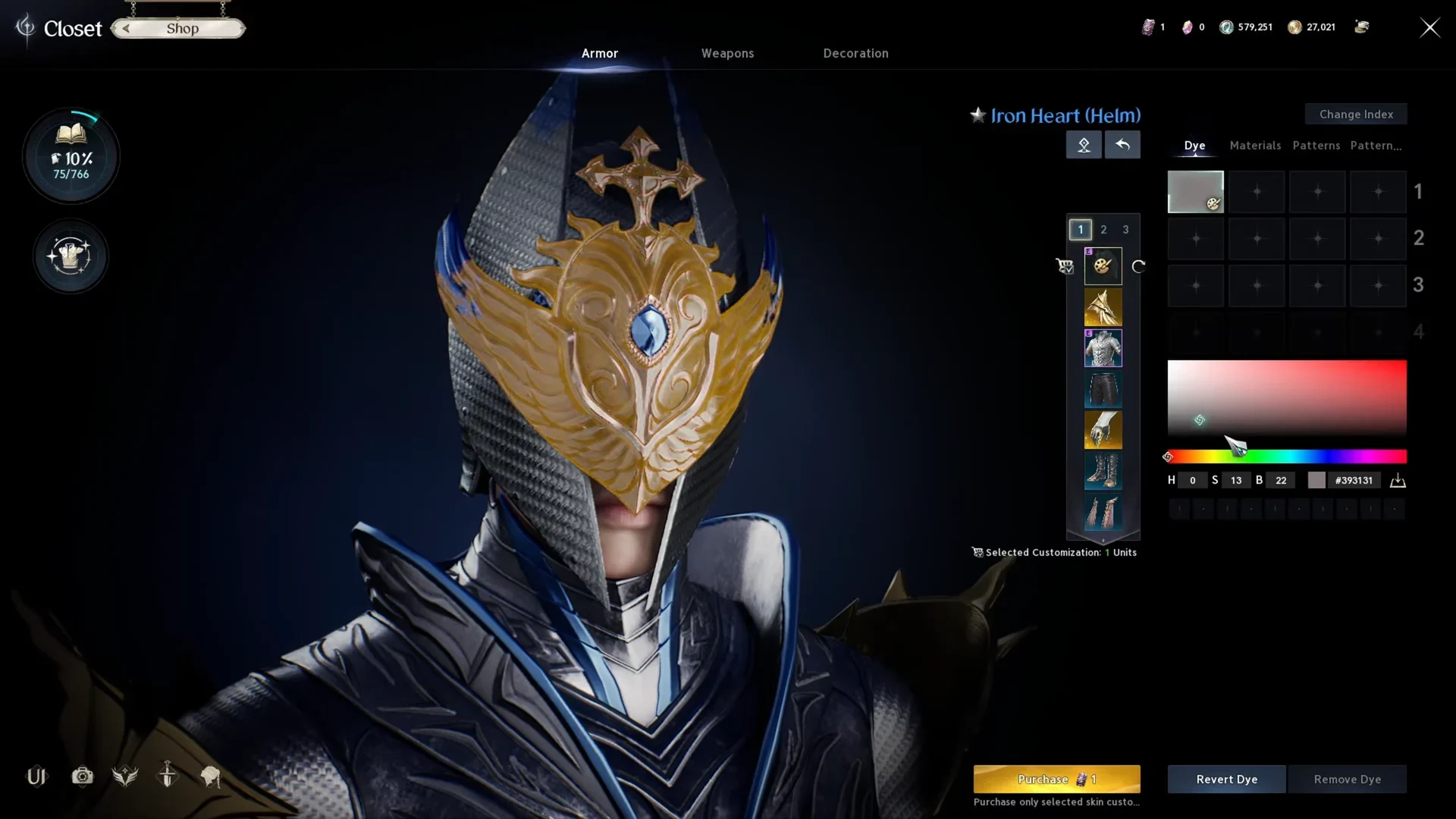
Select an unlocked, customizable piece and open Customize using the palette icon. If the control is missing, check that you picked the owned skin and that its product details allow customization.
- 2
Preview the color
In Dye, select an active index and use the picker or color-code field. Rotate the model and check the result. Materials and Patterns can also affect how the color looks. Save the index and color code if you want to recreate it.
- 3
Review the cost before Purchase
Check the selected piece and the cost shown in the client. The Global recording shows a Customization Voucher option. Check your own confirmation for voucher or Quna cost before applying the dye.
Restore a color or the original gear look
- 1
Discard a preview
Use Revert Dye to undo your pending dye edits on that piece. Check the preview before using Purchase.
- 2
Remove saved dye
Open the same piece and use Remove Dye when it is enabled. Check the default color in the preview and read any confirmation. Inspect Materials and Patterns separately if the finish still looks different. Current removal fees were not verified in the live client.
- 3
Switch back to the gear look
Return to Equip and clear the cosmetic for that slot, or re-equip the previous skin if you want that look back. Check the active slot on your character. Changing the equipped skin is separate from removing its saved dye.
Sources and original references
FAQ
Why is my outfit missing from the Closet?
For a set delivered to Shop Storage, claim it there and check the correct slot in Closet → Armor. For a reward or an item delivered to Cube, follow the instructions for that item.
What is the difference between Revert Dye and Remove Dye?
Revert Dye undoes pending dye edits. Remove Dye is for clearing the dye already on the selected piece. Preview the result and read the client confirmation before applying it.